Apple Pay is an easy, secure and private way to pay available on your Apple devices.
Now you can use the funds from your Tyro Transaction Account instantly – in-store, online, or in-app with Apple Pay. No card, no fuss, just tap or click and you’re covered.
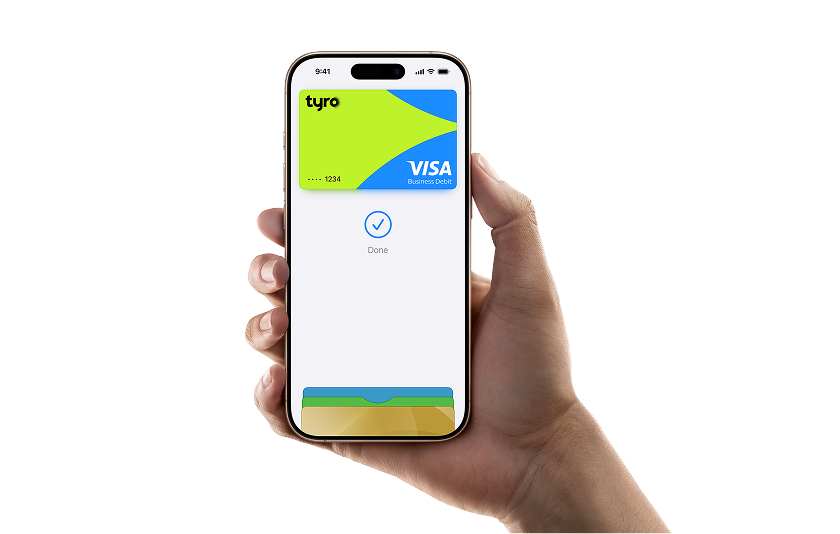

With Apple Pay, you can pay with your Tyro Visa Debit Card directly from your iPhone or Apple Watch.

With Apple Pay, information like your name and address automatically populate at check-out. Now paying is faster than ever.

Apple Pay used the security features built into your Apple device, including Face ID and Touch ID – which are designed so only you can authorise payments.

With Apple Pay, it’s fast and easy to pay with your Apple Watch. Simply hold your Apple Watch up to the card reader.
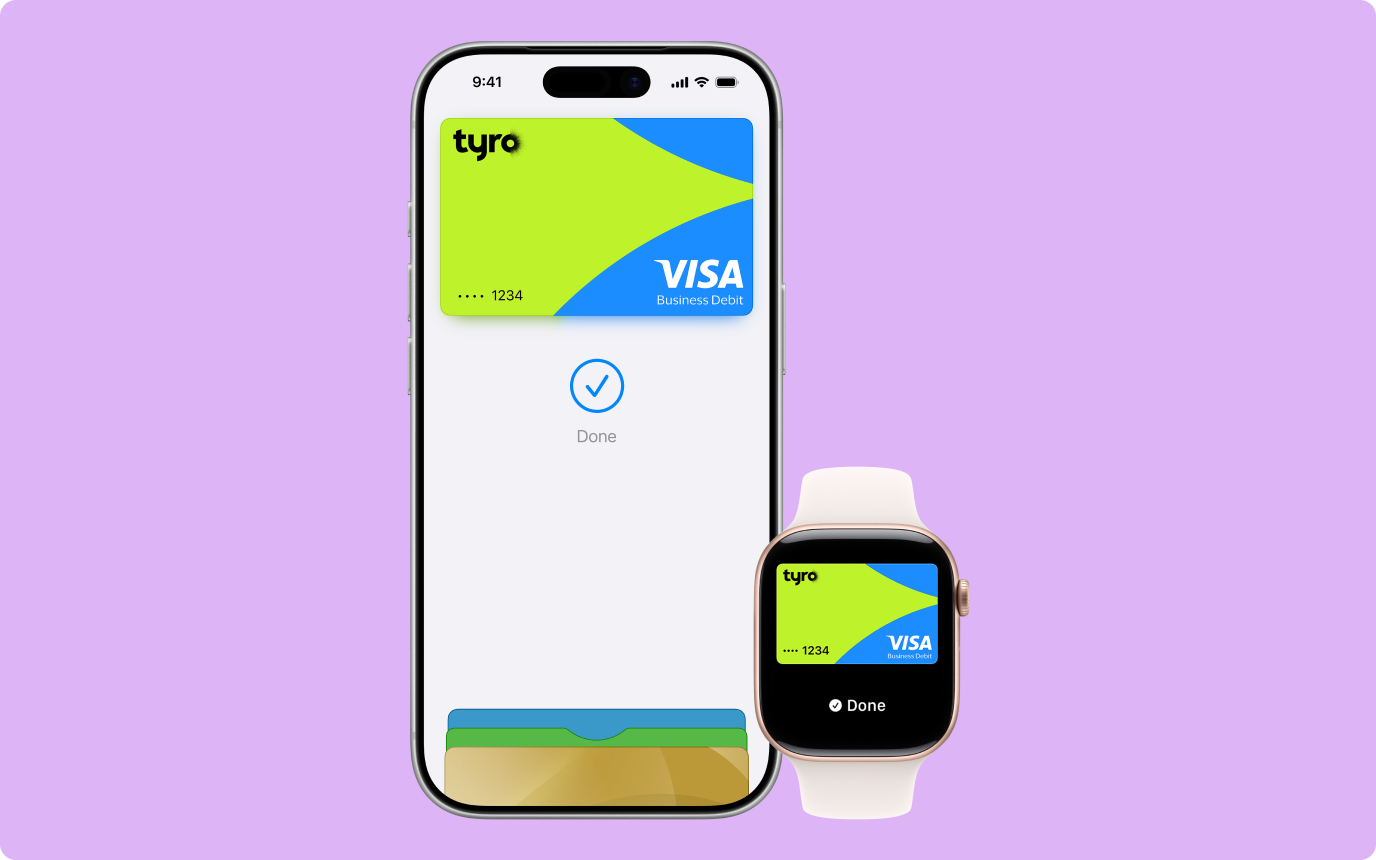
iPhone
Step 1: Log in to the Tyro Bank App
Step 2: Go to the menu and select “My Cards”
Step 3: Add your card to Apple Wallet
Step 4: You’ll be taken to the Wallet app where you will enter your one-time verification code.
Apple Watch
Step 1: Open the Apple Wallet app on your iPhone
Step 2: Tap “Wallet & Apple Pay” and select “Add a Credit or Debit Card”
Step 3: Go to Payment and add a payment method
Apple Pay uses your device’s built-in NFC technology, which turns on automatically, no setup required. Just make sure the retailer supports contactless payments.
To pay in-store, there’s no need to wake your iPhone or open an app. Double-click the side button, authenticate with Face ID, Touch ID, or your passcode, then hold your device near the reader to pay.
Double-click the side button and hold the display of your Apple Watch up to the reader. A gentle tap and beep confirms that your payment information was sent.
To pay in apps and on the web with Apple Devices, select Apple Pay as the payment method during checkout and place your finger on Touch ID or use Face ID.
To pay on Mac in Safari, choose Apple Pay then complete the purchase with Apple Devices.
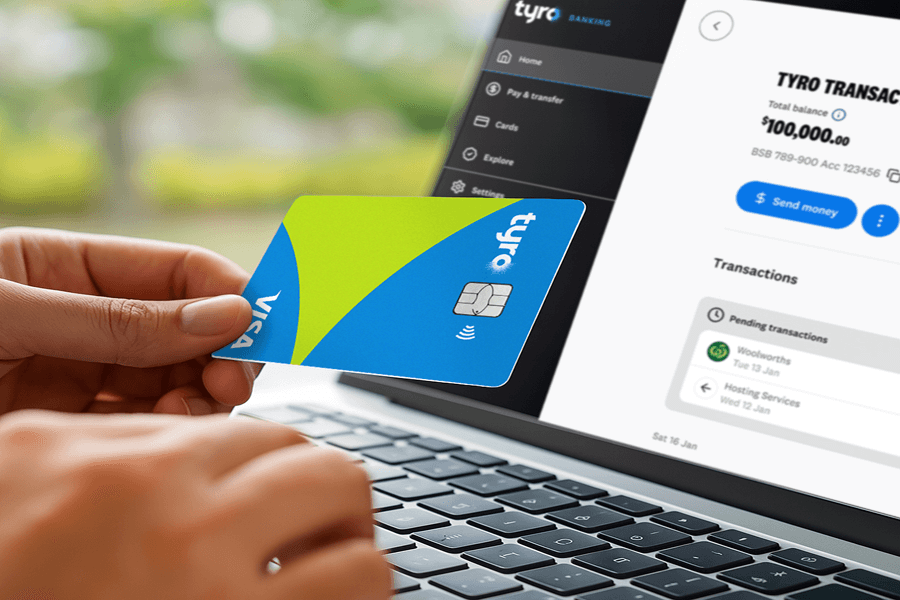
With a Tyro Transaction Account, your money works as fast as you do – same-day takings *, easy cashflow, all in one place.
Learn moreNo account-keeping or set up fees, with no minimum balance required
With same day settlement *, 7 days a week, including weekends and public holidays
Choose from direct debit, PayID®, PayTo®, Osko®, BPAY®, bank transfer to cover business expenses fast and securely
Manage your cash flow, track spending, and allocate funds for different purposes
Apple Pay is a digital wallet from Apple which lets you use compatible Apple Devices to make secure contactless purchase in stores, within selected apps and participating websites.
Apple Pay works with devices with iOS 10.3 or above, including iPhone 6 and later; with Apple Watch; with iPad Pro, iPad Air 2, and iPad mini 3 and later; and with Mac in Safari with an Apple Pay enabled iPhone 6 or later or Apple Watch. For a list of compatible Apple Pay devices, see here
You can add your Tyro Debit Card via the Tyro Bank App to your Apple Wallet app.
No, your card details are not stored on the device or in the Cloud. When a card is added to Apple Pay, a Device Account Number replaces the need for the card number.
A Device Account Number is a unique, encrypted number that’s created specifically for your device when you add your card to Apple Pay. Instead of using your actual card number, Apple Pay assigns a randomised digital number (the Device Account Number) that’s securely stored in your device’s dedicated security chip.
When you make a purchase in-store, in an app, or online, this number – along with a one-time dynamic security code is used to process your payment. Your actual card details are never shared with merchants or stored on Apple’s servers.
If the Device Account Number were ever compromised, it would not work anywhere else and could not be used outside the device it’s assigned to, keeping your information safe.
The Device Account Number can be found by opening the Wallet app and tapping the (i) symbol in the bottom right corner and then scrolling down to find Device Account Number.
No, it does not cost you anything extra to use Apple Pay.
The usual credit or debit charges apply to purchases and some retailers may apply a credit or debit card surcharge to purchases made using any payment method, including Apple Pay, contactless or chip and PIN transactions.
You require an active data plan or Wi-fi connection to add your card to Apple Pay. Based on your mobile plan and network, additional message and/or data charges may apply.
You can use your Apple Device to make a payment using Apple Pay in stores, within apps or on participating websites wherever you see one of these symbols:
Hold your iPhone 6 or later near the contactless reader and follow these steps:
If your iPhone has Face ID:
Double-click the side button, authenticate with Face ID or your device passcode, then hold your iPhone near the reader until you see Done and a checkmark on the display.
If your iPhone has Touch ID:
Hold your iPhone near the reader with your finger on Touch ID to authorise the payment. You don’t need to double-click, your payment will be confirmed once you see Done and a checkmark.
With an Apple Watch you double-click the side button and hold the display up to the contactless reader to authorise a payment.
Please note: the Apple Watch NFC feature has to be activated before Apple Pay will work. When you strap your Apple Watch to your wrist you will be prompted to enter the device passcode. This will enable Apple Pay. If the Apple Watch is removed from your wrist, so skin contact is lost, Wrist Detect detects that skin contact has been lost and Apple Pay and the NFC feature are deactivated.
Yes, you can use Apple Pay to make payments on participating websites using a Mac on Safari. To use Apple Pay, the Mac needs to be signed in to the same iCloud account as the iPhone or Apple Watch and have Bluetooth enabled on your Mac. You then:
You can use Apple Pay for purchases of any amount wherever contactless payments are accepted.
To pay, simply hold your iPhone or Apple Watch near the contactless reader and authorise the payment using Face ID, Touch ID, your device passcode, or by double-clicking the side button on your Apple Watch.
In some cases, for certain terminals or merchants, you might still be asked to enter your card PIN, but this is uncommon and depends on the retailer’s setup, not the transaction amount.
You take the item(s) back to the retailer as normal. Some retailers will be able to offer refunds back to the device from which the original payment was made, while others may have to refund via the Tyro Debit Card.
If the retailer is able to refund the device used to make the original purchase, you:
You may need to provide the last four digits of the Device Account Number to the retailer. This can be found by opening the Wallet app and tapping the (i) symbol in the bottom right corner and then scrolling down to find Device Account Number.
You’ll be able to see them in the Tyro Mobile Banking app as pending transactions. You can also view your last 10 transactions in the Apple Wallet.
Yes, Apple Pay is secure. A unique Device Account Number is securely stored on a chip in the device so payment can be made without any card information having to be shared with the retailer.
Other features which help to keep your payments secure and safe include:
iPhone and iPad
Payments can only be authorised by using Touch ID, Face ID (if it is enabled), or by entering the device passcode.
Apple Watch
Payments can only be authorised if the device passcode has been entered and skin contact with the device has not been lost. If the device has been removed from your wrist, Wrist Detect deactivates the NFC feature and Apple Pay. To re-activate the NFC feature and Apple Pay, the device passcode has to be entered again.
Please note: you should never share your device passcode, or register more than one person’s fingerprint or face to Touch ID and Face ID, while your card is registered to Apple Pay.
To remove a card from Apple Pay you must follow these steps:
iPhone
Apple Watch
Please note: if you remove your device passcode, Touch ID and Face ID security feature, or sign out of iCloud, all cards will be removed from Apple Pay on the Apple Device.
Nothing. Your card will automatically update in your Apple Wallet on the month of expiry. You will not need to do anything.
You should contact us straight away, so the lost or stolen card can be cancelled and no further purchases made. Your Apple Wallet card will then be disabled automatically and your new card will be issued into your Apple Wallet the next business day. Your physical card will still be sent to your address.
If you have the Find My iPhone app you can use it to remotely lock the device and disable the use of the Apple Pay function. Or you can log into iCloud.com and remove all cards from Apple Pay remotely. If you do not have the app you should contact us to request that your Tyro Debit Card be disabled for use with Apple Pay.
You should contact us to request that your Tyro Visa Debit card be disabled for use with Apple Pay. You should also go to iCloud.com and remove your card from your Apple Watch. If you find your Apple Watch you can add your card back by following the same steps you went through when you set the card up with Apple Pay originally.
Australian-based 24/7 support

Complete in under 2mins
For us to find the best solution for you, please answer a few quick questions, and have the following details handy:









 Get the help you need